
Table of Contents
Shared Services Customer Engagement Contact
Glossary of Terms
Log-In to Peoplesoft HCM
View Your Personal Information in HCM
Employee Time Entry Using a Punch Timesheet
Making Changes to a Punch Timesheet
Employee Time Entry using an Elapsed Timesheet
Making Changes to an Elapsed Timesheet
Viewing Payable Time Detail
Overtime Payment Configuration
Policy References
Chancellor’s Affordable Care Act (ACA) Directive and Manpower Control Program
Appendix A: Time Administration Information
Appendix B: Time and Labor Exceptions List
Shared Services Customer Engagement Contact
For questions related to your Time, Labor, and Absence Management entries (I.e. – accruals, balances, leave requests, etc.), please contact your agency’s HR Department.
Other questions can be directed to the SSC Customer Engagement Team.
SSC Customer Engagement Phone: 877-340-5577
- An agent will answer the call and attempt to answer your question.
- If the question cannot be answered at that time, it will be escalated for research, and you will be given a ticket number.
- You will be contacted with a resolution.
SSC Customer Engagement Email: help@ssc.vccs.edu
- You will get an immediate response via email that the ticket is being worked.
- You will be contacted with a resolution.
Glossary of Terms
| Term | Definition |
| Absence Request | Currently known as Leave or an Absence Request. Requests for leave shall be approved by an employee’s manager. Refer to Appendix A for more information on VCCS Leave Plans. |
| Exceptions | Warnings generated by the system to inform employees and manager of possible Time & Labor errors. Exceptions will appear as a clock on the timesheet. Refer to Appendix B for more information on Time and Labor Exceptions. |
| Exempt Employee | Exempt employees are covered by FLSA but are specifically exempted from its minimum wage and overtime pay requirements. Exempt employees are required to record absence requests in PeopleSoft HCM. They are exempt from the overtime requirement. |
| Non-Exempt Employee | Non-Exempt employees are covered by FLSA rules and regulations. Non-Exempt employees are required to document all hours worked on their timesheet in PeopleSoft HCM. Additionally, non-exempt employees must record absence requests in PeopleSoft HCM. |
| Pay Period | A pay period is a recurring length of time that an employee’s time is recorded, processed, and paid. VCCS pay periods for Salaried employees are the 10th-24th and 25th-9th. Wage time periods run every other Friday – Thursday. |
| Payable Time | Summary of time worked by an employee to be processed through Time and Labor. The hours worked have been validated by the scheduled Time Administration process and have been checked for errors that impact PeopleSoft HCM processing. For more information about the Time Administration process, refer to Appendix B |
| Workweek | A workweek is a fixed and regularly scheduled period of seven consecutive 24-hour periods. (Friday to Thursday, Sunday to Saturday, Monday to Sunday). All Wage employees follow a Friday to Thursday workweek. |
| Elapsed Time Reporters | Employees who are required to enter time based on total hours worked in a day. (i.e.: 8 hours) The timesheet results will show the daily entries inserted by the employee. |
| Punch Time
Reporters |
Employees who are required to enter time each time they log in and out. The timesheet results will show the punch time entries inserted by the employee |
Log-In to Peoplesoft HCM
Step 1. Log-in to PeopleSoft HCM using the MyVCCS link. This link is also located at the bottom of the VCCS Home Page or through your agency’s login portal. Example of agency portal: MyBRCC, MyCVCC, etc.
Step 2. Log in using your MyVCCS Username and Password credentials.
Note: Some agencies refer to this as MyAgency Id such as MyBRCC, MyCVCC, etc. Username Example: xyz2596.
Step 3. Once signed in, select the HR Icon from your menu of tiles.
End of Procedure
IMPORTANT NOTICE: In PeopleSoft HCM you must use the program navigation buttons; the browser back and forward buttons should not be used! The use of HR on smartphones, tablets and other mobile devices is not supported.
View Your Personal Information in HCM
Please contact your Human Resource Office if any changes are needed to your personal information. (Change in marital status, name, residence, telephone number, etc.). Changing this yourself does not properly update all systems.
Step 1. On the Employee Home page, click the Personal Details tile.
Step 2. The Personal Details page will display additional tiles relating to personal information such as: Addresses, Contact Details, Emergency Contacts, Name, and Disability.
*** Please do not make any changes to this data. Please contact your Human Resource Office if any changes are needed to your personal information. ****
Step 3. Select any tile to review your data.
End of Procedure
Employee Time Entry Using a Punch Timesheet
Step 1. From Employee Home page, click the My Time tile.
Step 2. In the upper left-hand side of the screen, click Timesheet.
If you have more than one position, you may see more than one time sheet listed when you login to PeopleSoft HCM. You must choose the appropriate timesheet to submit hours worked for each position worked.
Step 3. Selecting an option on the ViewBy dropdown allows you to view your timesheet by Calendar Period, Day, or Week.
- Selecting Week shows a week. Enter the month, day and year or select the day from the calendar icon. By selecting one of the blue hyperlinks, (Previous Week or Next Week), to the right of the ViewBy field, you can view previous or future weeks. (remember, the week will be Friday toThursday for wage employees).
- Selecting Day shows a specific day. Enter the month, day and year or select the day from the calendar. By selecting one of the blue hyperlinks, (Previous Day and Next Day), to the right of the ViewBy field you can view previous or future days.
- Selecting Calendar Period shows a full pay period. Enter the month, day and year or select the day from the calendar. By selecting one of the blue hyperlinks, (Previous Calendar Period and Next Calendar Period) you can view previous or future pay periods.
NOTE: You cannot enter future hours, but you can view the future.
Step 4. To refresh your search, click the two green arrows located next to the Date field to update your search data.
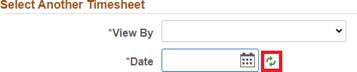
Note: Although the Next Time Period link is available, you cannot enter future hours, but you can view a future timesheet.
Step 5. Best practice is to enter time daily. You can revise any previously submitted punch time entries within the current pay period. Once the pay period has closed, please contact your agency’s Human Resource Office for any necessary corrections to your timesheet.
Step 6. Enter the desired “In” time into the “In” field for the appropriate date. Enter a valid value e.g. 8:00 AM.
Note: It is critical to enter AM or PM or the PeopleSoft HCM system will not calculate the work hours properly.

Step 7. If taking a lunch break, enter the time you left for your meal break into the Lunch field.

Step 8. Enter the time you came back from lunch into the “In” field (if a meal break was taken).

Step 9. Enter the time you left for the day in the “Out” field.

Step 10. Select the Time Reporting Code (TRC), REG - Regular Time from the drop-down menu for all hours actually worked (regardless of if the hours were worked on Saturday or Sunday, or if you worked longer than your scheduled shift). The system will automatically calculate overtime.
Step 11. In the event you must record more than four (4) punch time entries in a day, you will need to add another row. On your timecard, locate the date and punch time you will need to insert the additional entry for and click the Plus sign button to the right of that time entry to add a new row. Conversely, if you need to remove a punch, use the Minus button.

Step 12. If you wish to enter a comment about your work activities for a particular day, locate the comment section to the right of the timecard and click on the speech bubble icon to enter your comment. Your manager will be able to view these comments, and the information may be useful to explain the punch time entries that you made on that day. Additionally, these comments will remain as part of the official timesheet record.
Step 13. WORKING WITH NO MEAL BREAK
In the event you are working with no meal break, you will only use the “In” and “Out” fields. Do not put your end time in the Lunch field; PeopleSoft HCM will NOT calculate your work hours properly.

Note: The Department of Human Resources Management’s (DHRM) Policy #1.25 – Hours of Work, states that all employees who work at least six consecutive hours shall be afforded a lunch period (meal break)at least 30 minutes. The lunch period shall not be included in the number of hours worked per day.
Step 14. After entering all hours worked, select the blue Submit button located on the bottom left side of the timesheet.
Step 15. Lastly, a pop-up screen will appear to confirm your submission. Click the OK button.
End of Procedure
Additional Information:
- Part-time employees are restricted to 1500 work hours in a 12-month This averages approximately 29 hours per week (Friday to Thursday).
- At the end of the pay period, employees should review their entire timesheet for possible changes/corrections including punch times, accurate leave requests and reported hours. Once this final re-examination of the timesheet is completed, then the employee clicks the Submit This allows the final timesheet to be viewed by the manager for approval using the Approve Payable Time function.
- If you see an exception icon (clock with exclamation mark) next to a particular day, determine the cause of the issue and take appropriate action to make necessary corrections if needed. Once the corrections have been made, the automated Time Administration process should eliminate the exception. In the event that exceptions are not eliminated by correcting the timesheet, contact your manager for resolution.
The following information will be displayed below the timesheet as tabs to choose from:
- Reported Time Status: This tab will allow you to see the reported status, TRCcode, description and any comments for the hours worked based on the time sheet Clicking this tab will allow you to see the weekly summary of the work hours.
- Summary: This tab will allow you to see the weekly summary of the timesheet period.
- Exceptions: This tab displays any exceptions that occurred within the timesheet period and the associated recommended actions.
- Payable Time: This tab displays any existing payable time within the date range specified for this time sheet period.
Making Changes to a Punch Timesheet
Step 1. From the Employee Home page, click My Time tile.
Option A. If the hours worked or AM or PM were entered incorrectly:

- Click in the cell with the wrong value.
- Remove the value.
- Enter the correct value.
- Click the Submit button located on the bottom left of the timecard.
Option B. If the entire day needs to be deleted:

- Click the Minus Button at the end of the row.
- A pop-up notice will appear with “Yes- delete” or “No-Do not Delete” options, Confirm the deletion by choosing “Yes- Delete”.
- Click the Submit button located on the bottom left of the timecard.
End of Procedure
Employee Time Entry using an Elapsed Timesheet
Step 1. From the Employee Home page, click My Time tile. Your Elapsed Timesheet will populate on the page.
Step 2. Selecting an option on the ViewBy dropdown allows you to view your timesheet by Calendar Period, Day, or Week.
- Selecting Week shows a week. Enter the month, day and year or select the day from the calendar By selecting one of the blue hyperlinks, (Previous Week or Next Week), to the right of the ViewBy field, you can view previous or future weeks. (Remember, the week will be Friday to Thursday for all wage employees).
- Selecting Day shows a specific day. Enter the month, day and year or select the day from the calendar. By selecting one of the blue hyperlinks, (Previous Day and Next Day), to the right of the ViewBy field you can view previous or future days.
- Selecting Calendar Period shows a full pay period. Enter the month, day and year or select the day from the calendar. By selecting one of the blue hyperlinks, (Previous Calendar Period and Next Calendar Period) you can view previous or future pay periods.
NOTE: You cannot enter future hours, but you can view the future.
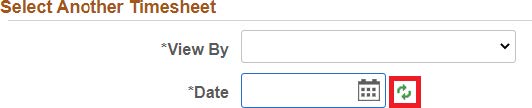
Step 3. To refresh your search, click the two green arrows by the Date field to update your search data.
Step 4. Best practice is to enter time daily. You can revise any previously submitted time entries within the current pay period. Once the pay period has closed, please contact your agency’s Human Resource Office for any necessary corrections to your timesheet.
Step 5. Enter the total number of hours worked for each day in the box underneath the corresponding date. Enter a valid value, Ie: 4.00.

Step 6. To the right of the timecard, select the Time Reporting Code (TRC) from the drop-down menu. Click the REG - Regular Time from the drop-down list for all hours actually worked, regardless of whether the hours worked were on Saturday or Sunday, or if you worked longer than your scheduled shift. The system will automatically calculate overtime.
Do not enter “0.00” (zero hours) on the timesheet. If there are no hours to report, the field should be left blank for that day. Entering a zero on a timesheet could cause a Time & Labor Exception, which could result in the prevention of hours transferring to Payable Time.
Step 7. If you wish to enter a comment about your work activities for a particular day, locate the comment section to the right of the timecard and click on the speech bubble icon to enter your comment. Your manager will be able to view these comments, and the information may be useful to explain the entry you made on that day. Additionally, these comments will remain as part of the official timesheet record.
Step 8. After entering all hours worked, select the blue Submit button located on the bottom left side of the timesheet.
Note: The Department of Human Resources Management’s (DHRM) Policy #1.25 – Hours of Work, states that all employees who work at least six consecutive hours shall be afforded a lunch period (meal break) of at least 30 minutes. The lunch period shall not be included in the number of hours worked per day.
Step 9. A pop-up screen will appear to confirm your submission. Click the OK button.
End of Procedure
Making Changes to an Elapsed Timesheet
Step 1. From the Employee Home page, click the My Time tile. Your Elapsed Timesheet will populate on the page.
Option A. If the hours worked were entered incorrectly follow these steps to correct the data:
- Click in the cell with the wrong value.
- Remove the value.
- Enter the correct value.
- Click the Submit button located on the bottom left of the timecard.
Option B. If the hours need to be deleted (removed entirely), follow these steps to correct the data:
- Click in the cell with the wrong value.
- Remove the value (do not enter 0).
- Click the Submit button located on the bottom left of the timecard.
End of Procedure
Important Note: At the end of the pay period, employees should review their entire timesheet for possible changes/corrections including punch times, accurate leave requests and reported hours. Once this final re-examination of the timesheet is completed, then the employee clicks the Submit button. This allows the final timesheet to be viewed by the manager for approval using the Approve Payable Time function.
- If you see an exception icon (clock with exclamation mark) next to a particular day, determine the cause of the issue and take appropriate action to make necessary corrections if needed. Once the corrections have been made, the automated Time Administration process should eliminate the exception. In the event that exceptions are not eliminated by correcting the timesheet, contact your manager for resolution.
Viewing Payable Time Detail
Step 1. From the Employee Home page, click the My Time tile. Your Elapsed Timesheet will populate on the page.
Step 2. On the upper left-hand side of the page, click the Payable Time Detail link.
Step 3. The Payable Time Detail page will populate. The Start and end date fields on the page will auto-populate with the current week. If you wish to change the dates, enter the start date and end date of the time period you wish to view and click the two green arrows to the right of the end date field to Refresh the page.
Step 4. Payable time and approval status will display for each day of the pay period.
Note: Hours will not show in Payable Time Detail until the Time Administration process successfully runs after any hours have been entered on the timesheet. This process runs every hour. Refer to Appendix A : Time Administration Information for more details.

End of Procedure
Overtime Payment Configuration
Note: Overtime is calculated on the last day of the workweek according to the employee’s work schedule. The system does not allow users to enter Overtime for themselves.
OT2 – Overtime Pay, considered 1.5 times the hours. Overtime Pay 2 is calculated when an employee physically works over 40 hours per workweek. Timesheet Example- Workweek is Friday to Thursday and shows 44 total hours physically worked.

Payable Time Detail– when looking at payable time detail, you will note the system automatically calculates OT2 for payment on the last day of the workweek even though the additional hours worked may have been earlier in the week.

Policy References
Below are links to the DHRM and VCCS policies.
Department of Human Resource Management Policies
(DHRM). DHRM Policy 2.20 Types of Employment
Virginia Community College System Policies
Chancellor’s Affordable Care Act (ACA) Directive and Manpower Control Program
The chancellor has issued limits on the amount part-time employees can work in any position or a combination of positions within the VCCS as a whole (at any two or more colleges). The directive applies to all part-time employees and adjunct faculty regardless of the funding source for the employees’ pay.
There are no exceptions to the limits.
- The year measurement period for all part-time employees is May 1st – April 30th for each year.
- Wage employees shall not work more than 29 hours per week (Friday – Thursday), averaged over a year.
- If you also are an adjunct, in addition to your part-time/wage position, please consult with your school dean for additional guidance on the calculation of work hours.
Managers and employees must ensure, through scheduling and approval of time records, that this requirement is met.
The Manpower Control Program is the law of the Commonwealth, and the Chancellor’s Directive sets forth the administration and compliance within this law.
Appendix A: Time Administration Information
- Time and Labor Exceptions – Background Information:
- The Time Administration process (Time Admin) is an automatic process which runs hourly according to the schedule for each agency. Additionally, the Time Admin process accepts the changes to the timesheets made by the employee. Each time the employee enters punch time entries or submits changes to those punch time entries on the timesheet, which deviate from the employee’s “predefined work schedule”, it will create an exception. Also, if the manager has cleared the exceptions, and the employee submits changes to their timesheet after the manager has cleared exceptions, it may create new exceptions.
- The results of Time Administration are either Exceptions or Payable Time that can be approved by the Manager. It is important that the manager resolve all exceptions before approving payable time. In the process of resolving or clearing the exceptions, the manager is to check the employee’s timesheet and absence requests for accuracy. Communication with the employee is essential to correcting punch and elapsed time entries and absence requests. It is the manager’s responsibility to ensure that the final timesheet is correct before approving payable time.
- Moreover, a list of the exceptions is listed in Appendix B.
Appendix B: Time and Labor Exceptions List
The following table lists each exception, provides a description, whether the exception is allowable or not, the cause of the exception, the resolution (or action to take) and the exception’s severity level.
| Exception ID | Description | Allowable | Cause | Resolution | Severity |
| VX9001 | Reported hours less than scheduled hours. | Allowable | Timesheet incomplete or leave not loaded. | Enter all payable and approved leave hours; allow if correct. | Medium Severity. |
| VX9002 | Hours worked greater than 24 in a day. | Allowable | More than 24 hours reported in one day. | Correct timesheet or allow if valid (e.g., leave payout). | High Severity. |
| VX9004 | Comp time required on holiday. | Allowable | Holiday not reported. | Add holiday time or allow exception | High Severity. |
| VX9005 | Overtime required. | Allowable | More than 40 hours worked in a week. | Report overtime when applicable. | High Severity. |
| VX9006 | Late in punch. | Allowable | Punched in 5 minutes or more after scheduled time. | Correct timesheet or allow exception. | High Severity. |
| VX9007 | Late out punch. | Allowable | Punched out after scheduled time. | Correct timesheet or allow exception. | High Severity. |
| VX9008 | Missing punch. | Allowable | One or more punches missing. | Correct the timesheet. | High Severity. |
| VX9009 | 1200 hour limit warning. | Allowable | Wage employee reached 1200 hours. | Allow exception to clear warning. | Medium Severity. |
| VX9010 | 1500 hour limit reached. | Allowable | Wage employee reached 1500 hours. | Correct timesheet or allow exception. | High Severity. |
| VX9011 | Quasi full-time hours incorrect. | Allowable | Hours not between 32 and 39.9. | Correct the timesheet. | High Severity. |
| VX9012 | Permanent part-time hours incorrect. | Allowable | Hours not between 20 and 31.9. | Correct the timesheet. | High Severity. |
| VX9013 | Work-study authorization exceeded. | Allowable | Approved amount exceeded in SIS. | Contact Financial Aid or HR. | High Severity. |
| VX9014 | 9–11 month quasi full- time not 40 hours. | Not Allowable | Did not report 40 hours per week. | Correct the timesheet. | High Severity. |
| VX9015 | 9–11 month part-time over 32 hours. | Not Allowable | Reported more than 32 hours. | Correct the timesheet. | High Severity. |
| VX9016 | Lunch punch without out punch. | Allowable | Odd number of punches. | Correct timesheet to be paid. | High Severity. |
| TLX00030 | Inactive time reporter status. | Not Allowable | Time reporter status inactive. | Update status to Active. | High Severity. |
| TLX00440 | TRC not in TRC program. | Not Allowable | TRC not associated with reporter. | Correct TRC program setup. | High Severity. |
| TLX00830 | Invalid reported taskgroup. | Not Allowable | Department ID invalid for taskgroup. | Correct taskgroup or department setup. | High Severity. |
| TLX01560 | Quantity cannot be zero. | Not Allowable | Zero hours entered. | Remove zeros or enter positive hours. | High Severity. |
| TLX01600 | Invalid time reporter. | Not Allowable | Not enrolled in Time and Labor. | Correct enrollment or reported date. | High Severity. |
| TLX01700 | Full absence with reported time. | Not Allowable | Time entered on full- day absence. | Remove reported time. | Low Severity. |
| Exception | Description | Rule | Allowable | Cause | Resolution | Severity |
| VX9012 | Perm Part-Time Hrs Incorrect | QUASI_PT | Allowable-Yes | A permanent part-time employee who works 12 months doesn’t report between 20 and 31.9 hours in their workweek. | Correct the timesheet. | Severity is High |
| VX9013 | Work-Study Auth Amt Exceeded | WORKSTUDY | Allowable-Yes | The work-study employee has exceeded their approved amount in the SIS system. | Contact financial aid to increase authorized work-study amount. If employee is not federal work-study, contact HR. | Severity is High |
| VX9016 | Lunch Punch Without Out Punch | Allowable-Yes | A punch time employee reported a Lunch without an Out punch on the same day. | This employee has reported an odd number of punches. They must correct their timesheet in order to be paid for this day. | Severity is High | |
| TLX00030 | Inactive Time Reporter Status | Allowable-No | Time Reporter Status is Inactive and cannot be processed by Time Administration. | Update the Time Reporter Status to Active if processing time for this Time Reporter is needed. | Severity is High | |
| TLX00440 | TRC is not in TRC Program | Allowable-No | The Time Reporter's TRC Program is not associated with the reported TRC as of this date: XX | Severity is High | ||
| TLX00830 | Invalid Reported Taskgroup | Allowable-No | The Time Reporter's Department ID is invalid with the reported Taskgroup: PSNONCATSK. | The Commitment Accounting Flag on the reported Taskgroup is not consistent with the Use_Distribution_Flag on the Time Reporter's Department. | Severity is High | |
| TLX01560 | QTY cannot be zero | Allowable-No | The employee has entered a zero value for the Time Reported Quantity. | Timesheet must be corrected by removing zero(s). The field must reflect positive hours (greater than zero) or be left blank. | Severity is High | |
| TLX01600 | Invalid Time Reporter | Allowable-No | Time Reporter is not enrolled in Time and Labor as of this date. | The reported time is not valid for this date, as the date of reported time is earlier than the Time and Labor enrollment date. | Severity is High | |
| TLX01780 | Reported time in Future Period | Allowable-No | Reported time is for a future period. | The time reported is for a restricted future period. | Severity is High |
